aFinder

File manager for macOS, Windows and Linux

Explorer, the way you remember it. Built for the way you work now.

aFinder brings back the Windows XP Luna look and pairs it with what a file manager needs today: tabs, up to four panes, instant search through every subfolder, a command palette, SFTP, S3 and SharePoint as ordinary folders, and Claude Code running right next to your files. Prefer today's Finder? Switch to the Modern (macOS) theme in one click.

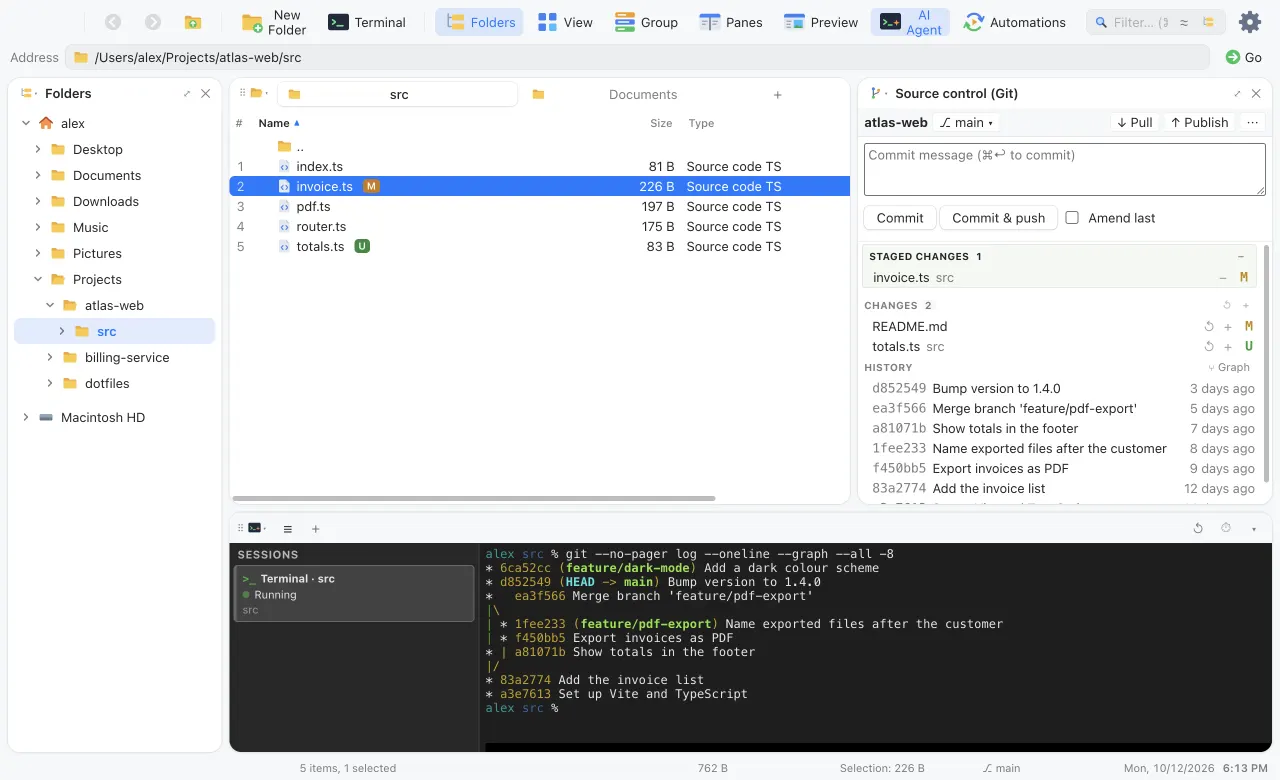
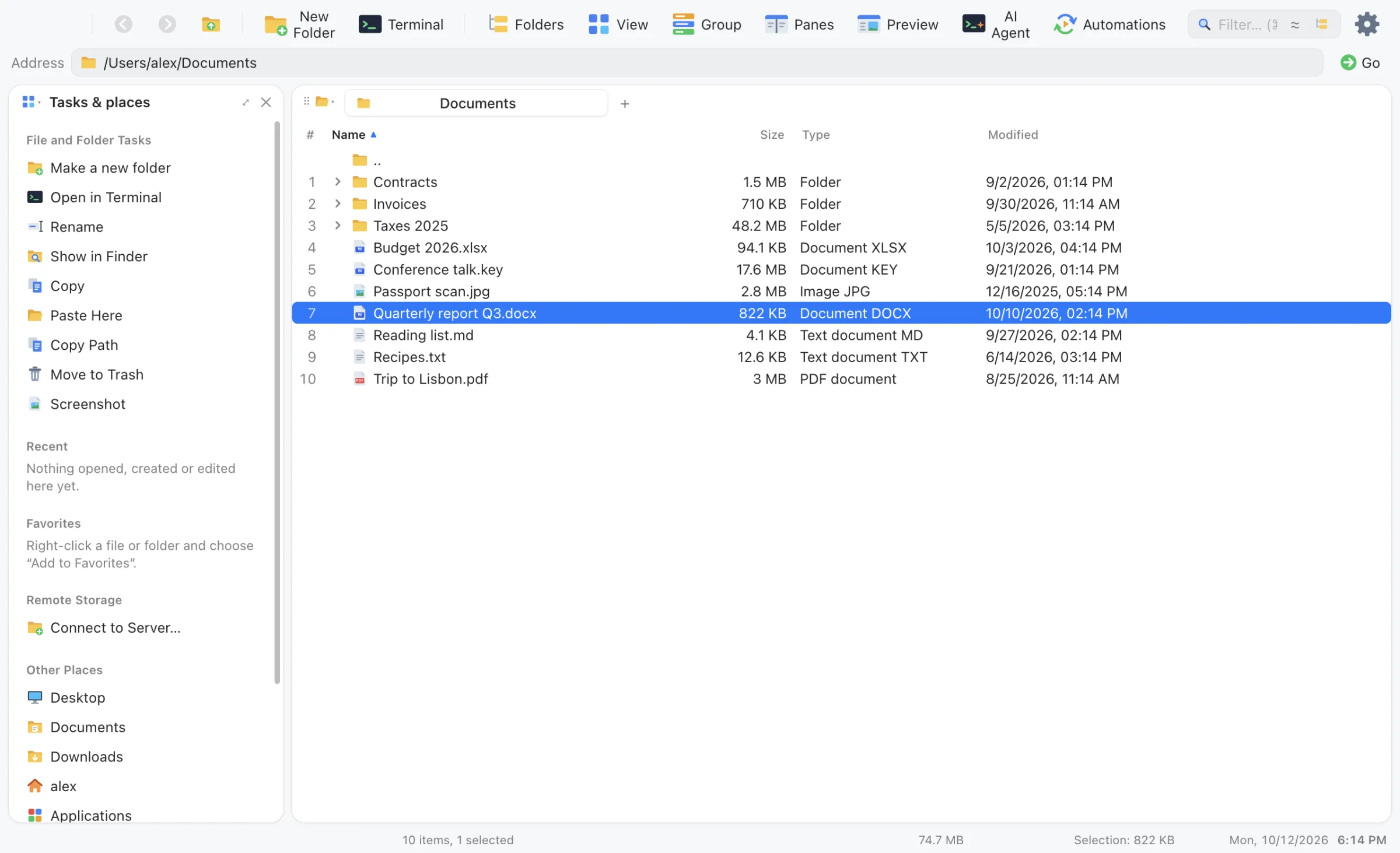
aFinder in the Modern (macOS) theme

Today's Finder: flat, airy and SF type, light or dark with the system, and the native traffic lights on the Mac.

4panes side by side, each with its own tabs
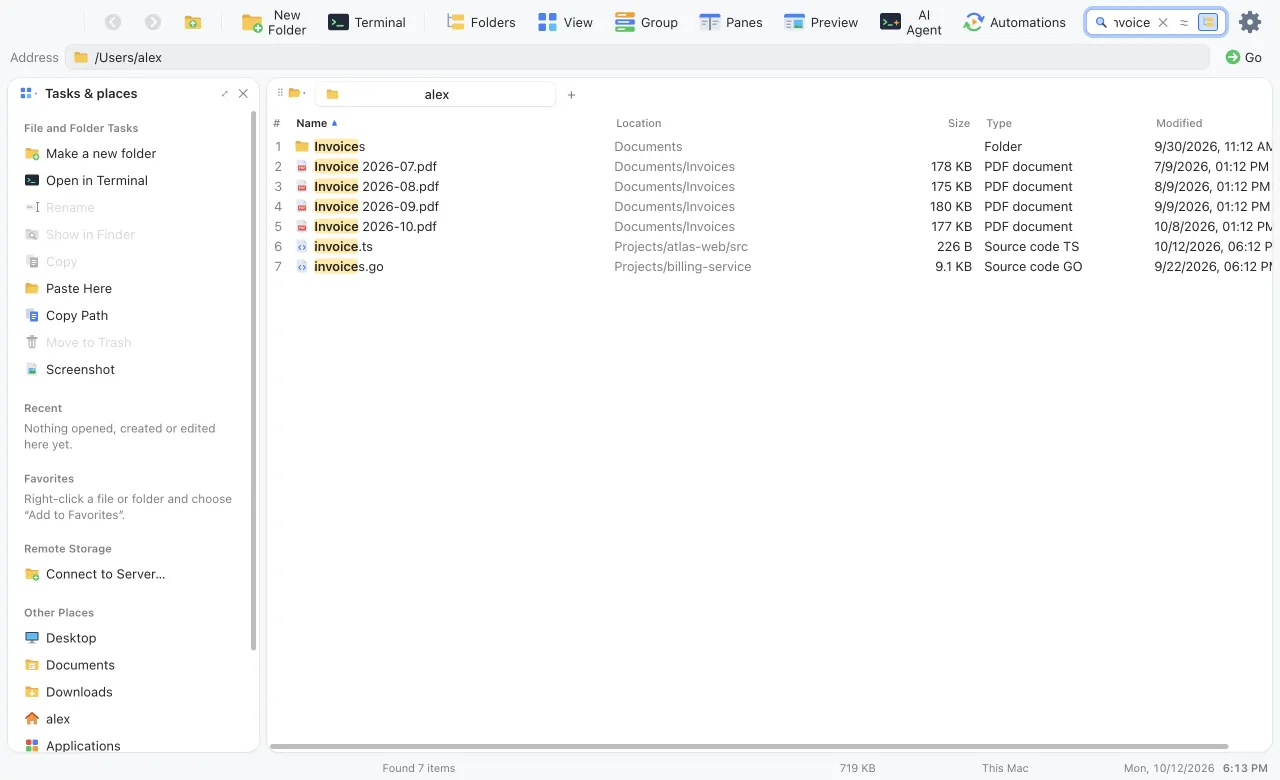
5,000results streamed live from subfolder search
11themes, from Luna and modern macOS to J.A.R.V.I.S.
3platforms, one native-feeling keymap each
▾

Tabs and split panes

Navigation

Work in two folders at once without juggling windows.

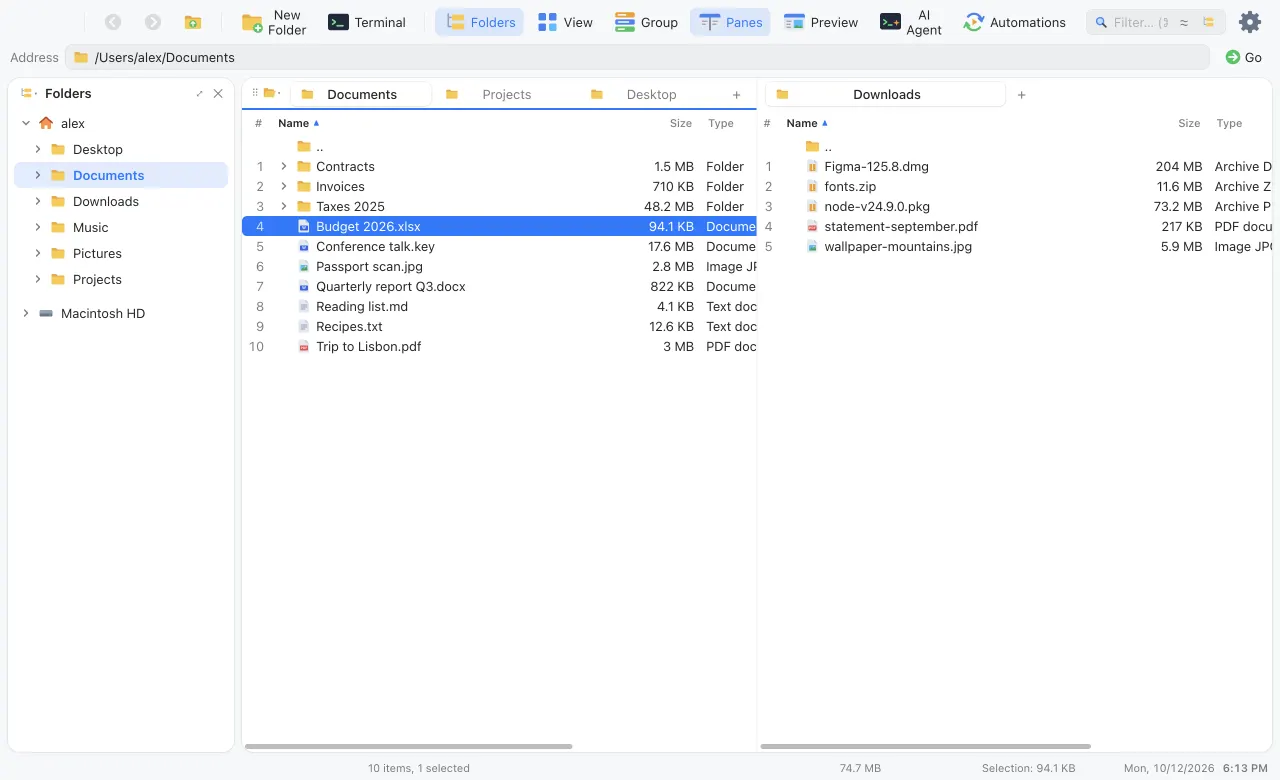
Every tab keeps its own folder, history, filter, sort order and grouping. Split the window into up to four panes, size them freely and drag tabs between them, or into another aFinder window entirely.

  • ⌘T New tab, ⌘1–9 to jump
  • ⌘\ Split the window
  • F5 / F6 Copy or move the selection to the other pane
  • Middle-click a folder to open it in a new tab
Two panes: Documents with three tabs on the left, Downloads on the right
▾

Virtual folders

Organize

Sort a messy folder without moving a single file.

Group any folder, or any search result, by year, month, week or day of change, by kind, extension or size. Groups collapse with a click, and a double-click opens one as a virtual folder of its own, right in the address bar.

Folder sizes are computed recursively in the background, cached, and kept current as files change.

Pictures grouped by month, with the folder tree on the left
▾

Command palette

Keyboard

Every action, one search box away.

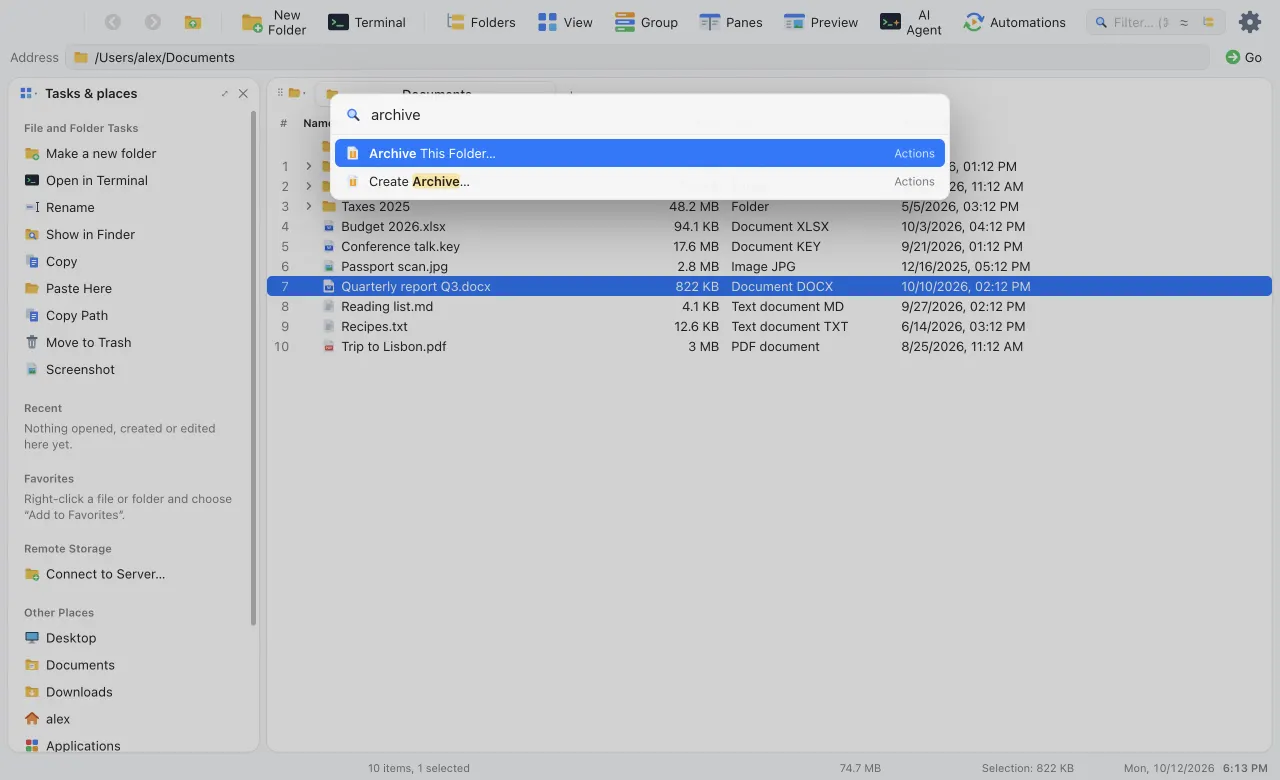
Press ⌘K and type. The palette finds commands for the folder and the selection, view and grouping toggles, favorites, places and connected servers, tabs and panes, themes, languages and AI actions. It matches fuzzily, ignores diacritics and shows each command's shortcut, so you learn them as you go.

  • ⌘K on the Mac
  • CtrlK or CtrlShiftP on Windows and Linux
The command palette in the Modern (macOS) theme, listing AI actions for the query “ai”
▾

Claude Code, Codex and a terminal, built in

AI Agent

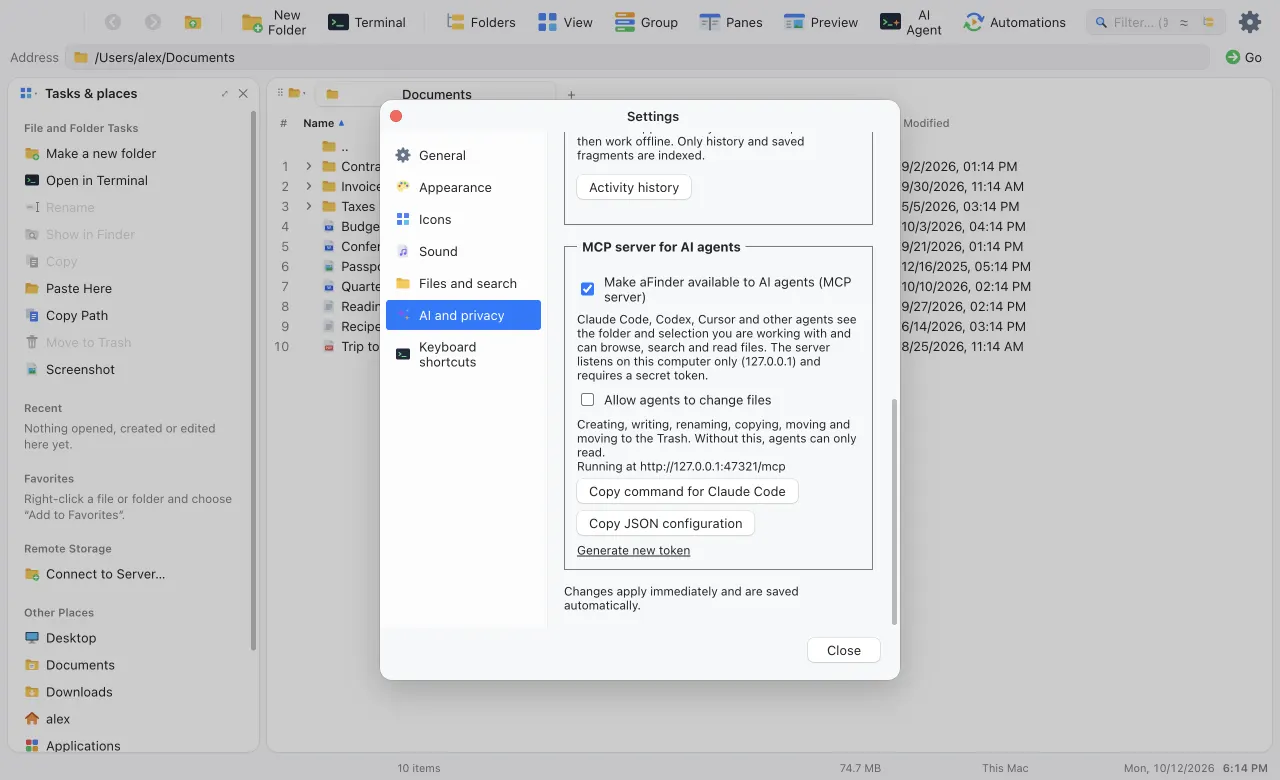
Point an agent at a folder and watch its changes land in the list.

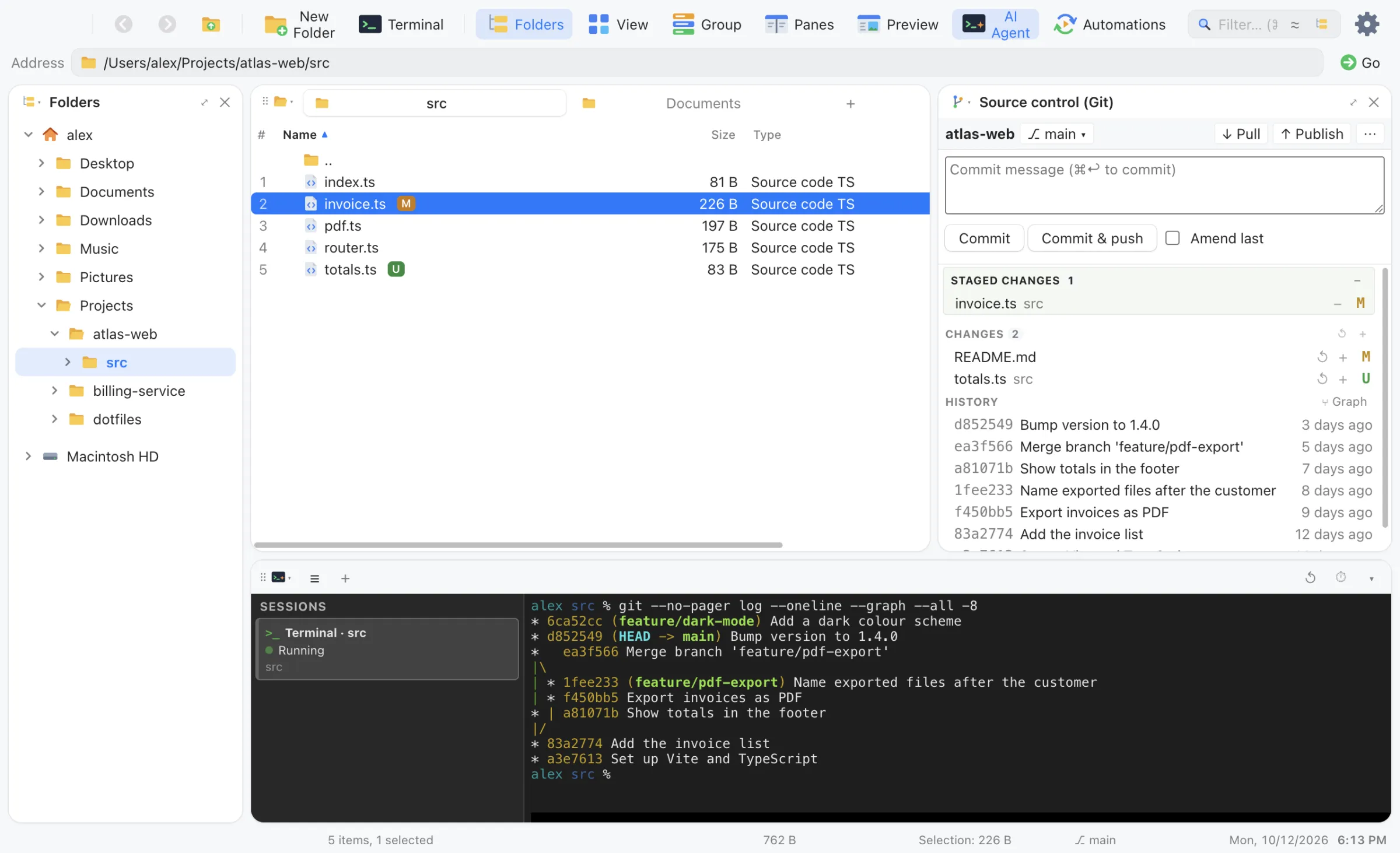
The AI Agent panel starts Claude Code, Codex or your shell in the current folder. The Terminal button opens a shell there too, inside aFinder. Sessions get their own tabs, keep running when the panel is hidden, and the file list updates as the agent writes. Drop files on the panel to paste their quoted paths.

Open
⌃` or right-click a folder
Shell
Your login shell, so PATH and aliases match your terminal
Agents
Only the ones you have installed are offered
Engine
node-pty and xterm.js

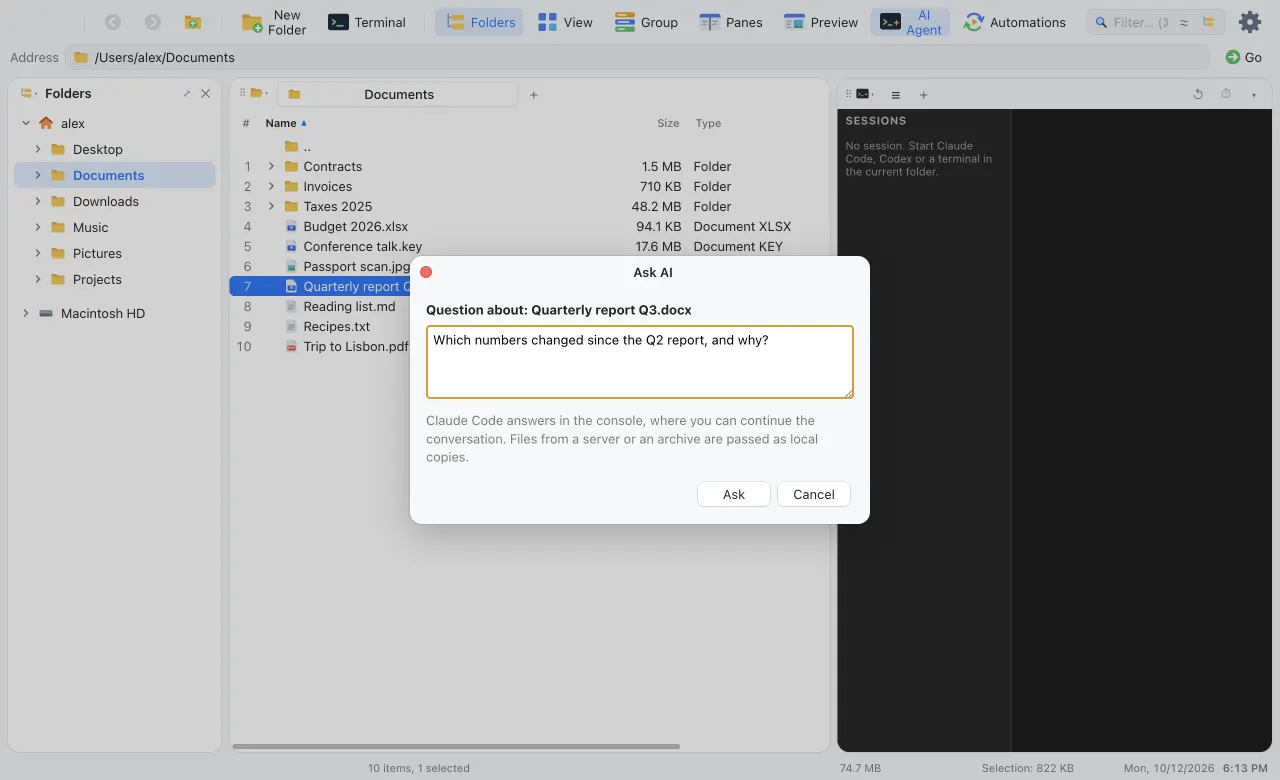
Or ask about the files you have selected.

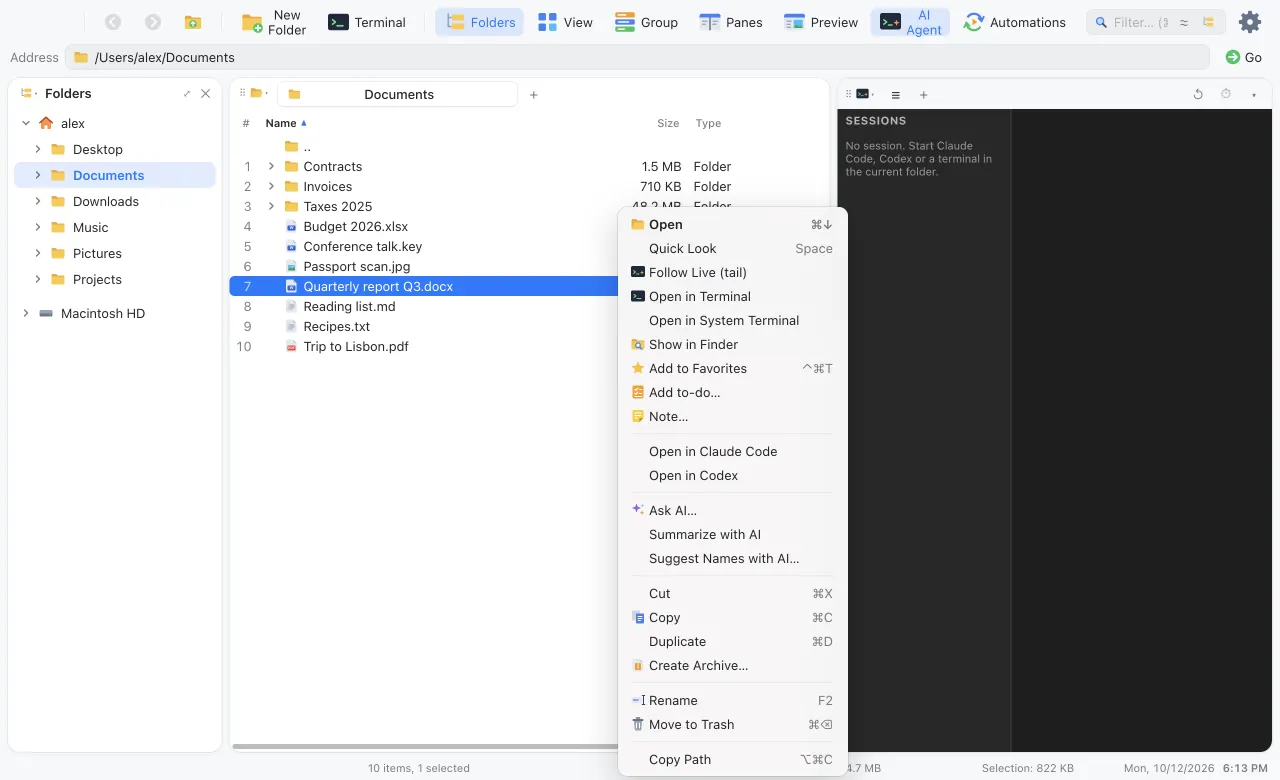
Right-click a file, a selection or empty space for Ask AI…, Summarize with AI and Describe folder with AI. Each starts Claude Code or Codex with your files already in the first message, and the conversation stays open. Suggest Names with AI… opens batch rename with proposals from Claude Code, which sees only the names, never the contents, and runs without tools.

Rename
Same collision and character checks as a manual rename, extensions kept
Refine
Add your own instruction and Suggest again
Remote
Files from archives and servers are handed over as local copies
▾

Servers and clouds as ordinary folders

Remote

SFTP, S3, SharePoint and OneDrive, browsed like your own disk.

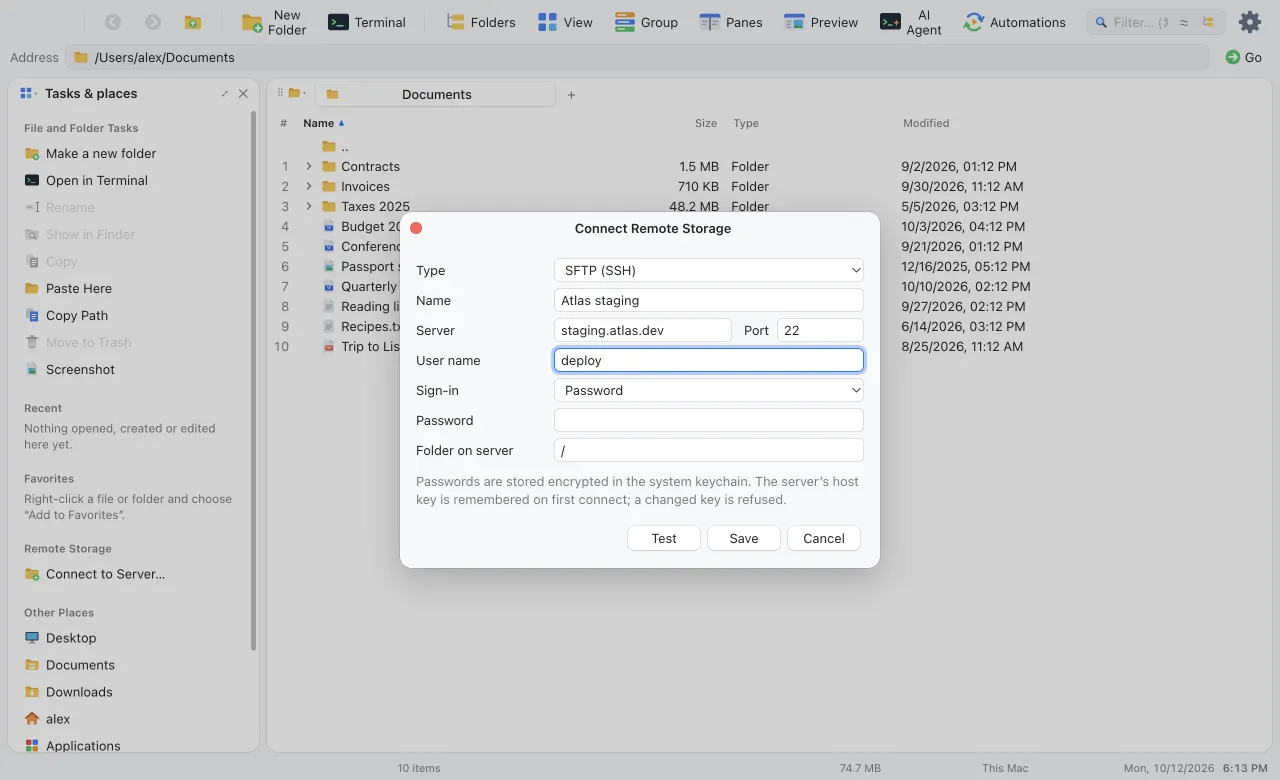
Choose Connect to Server… in the task pane. A connection behaves like a folder: browse it, preview files, open them, copy and move to and from your disk with ⌘C/⌘V, F5/F6 or drag and drop, rename, edit text in the preview and delete. Type sftp:// or s3:// addresses straight into the address bar.

SFTP
Password, private key or SSH agent; host keys pinned on first connect
S3
AWS, MinIO, Cloudflare R2, Wasabi, Backblaze B2, or your ~/.aws profile
Microsoft
SharePoint libraries and OneDrive via Microsoft Graph, with MFA sign-in
Secrets
Encrypted in the system keychain
▾

And the everyday things, done properly

Details
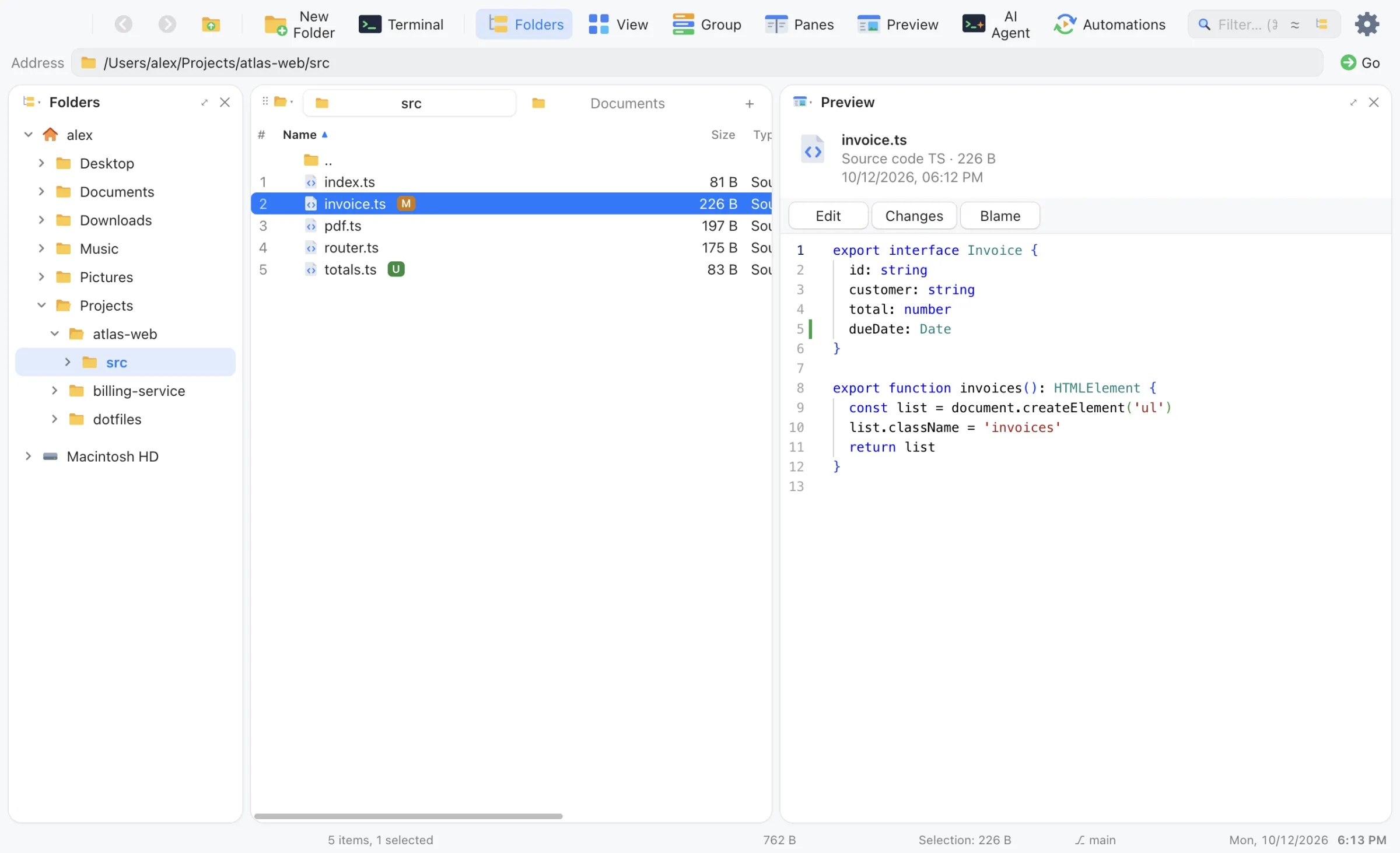
  • Preview and edit: code in the Monaco editor with syntax colours, images, PDF, video, Word and Excel, everything else through Quick Look. Space opens a large Quick Look window; ⌘S saves edits.
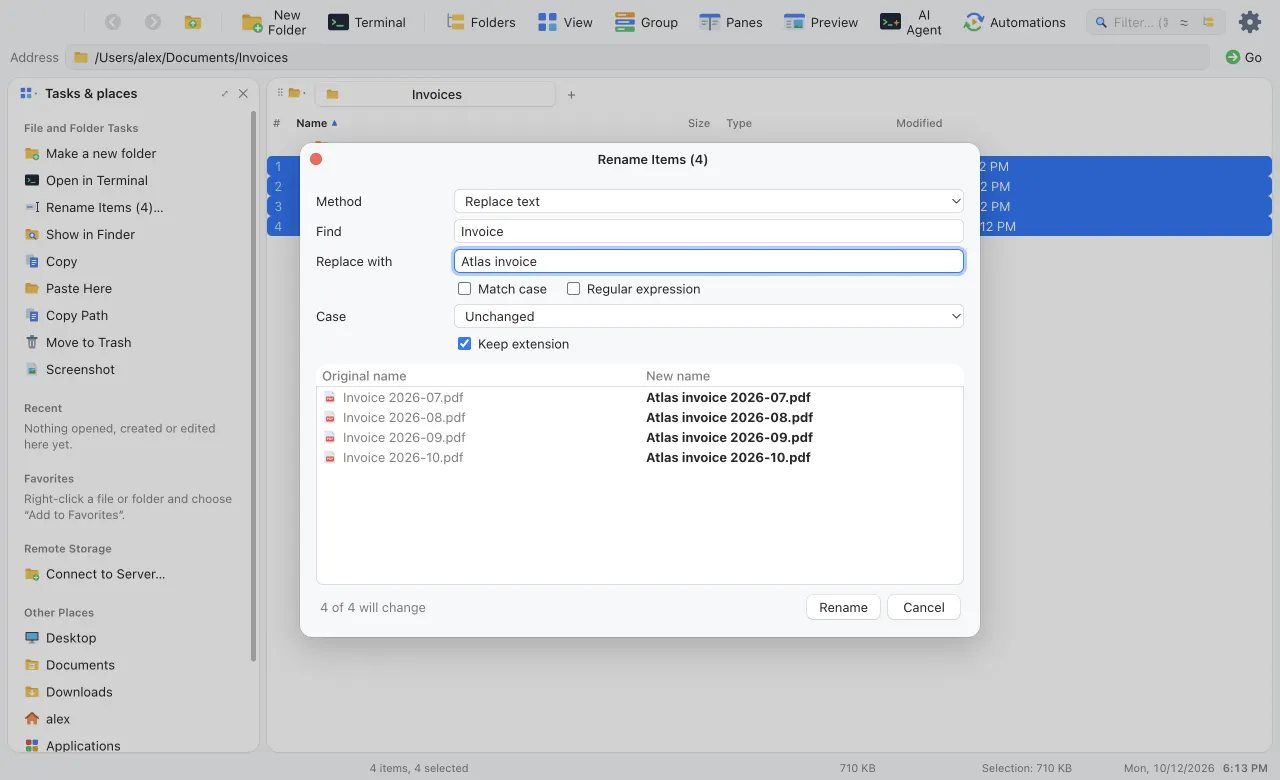
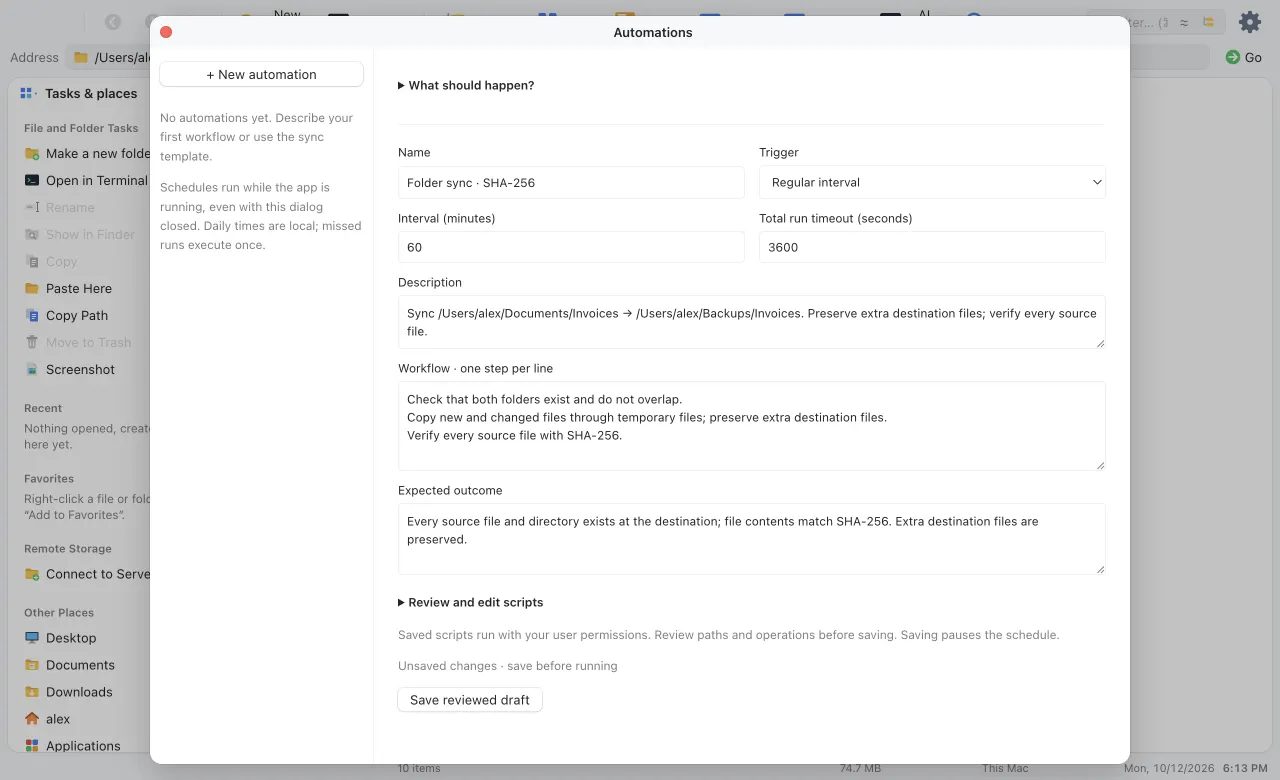
  • Batch rename with find and replace (regular expressions too), prefixes, suffixes and numbering, and a live preview that catches clashes before anything moves.
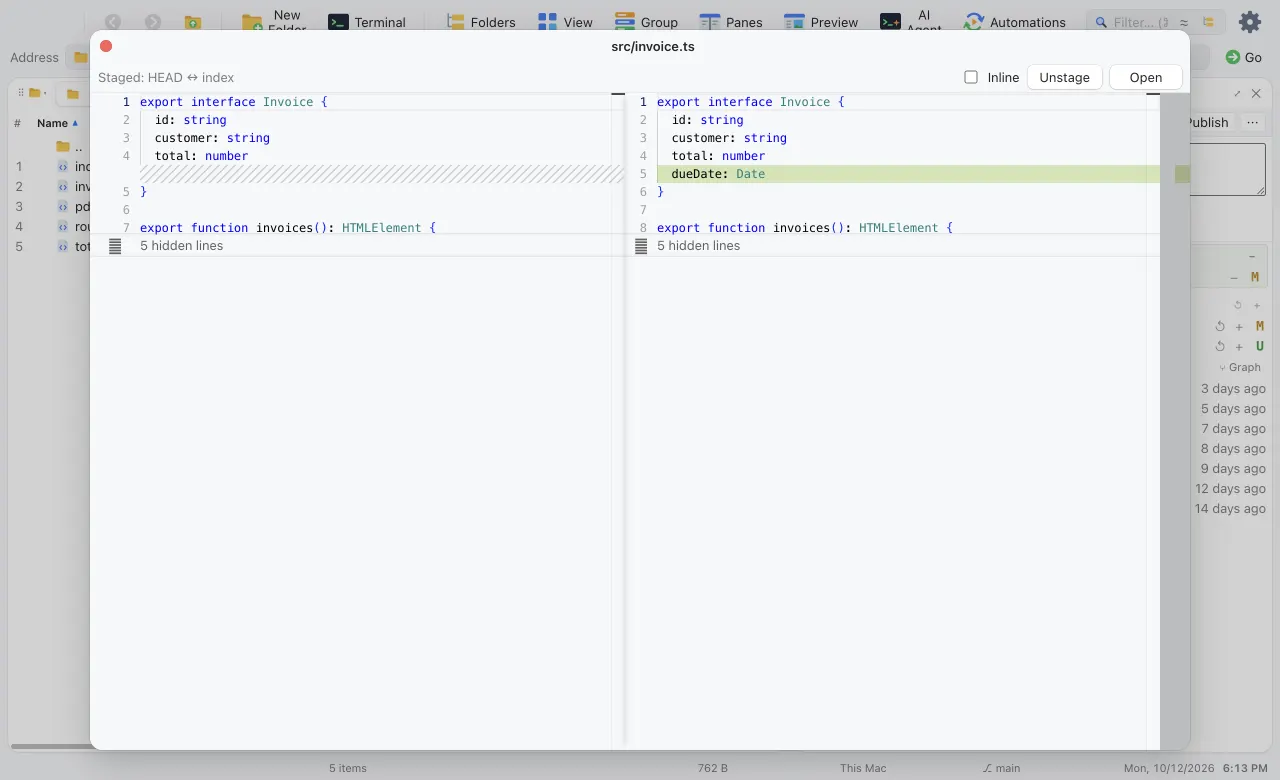
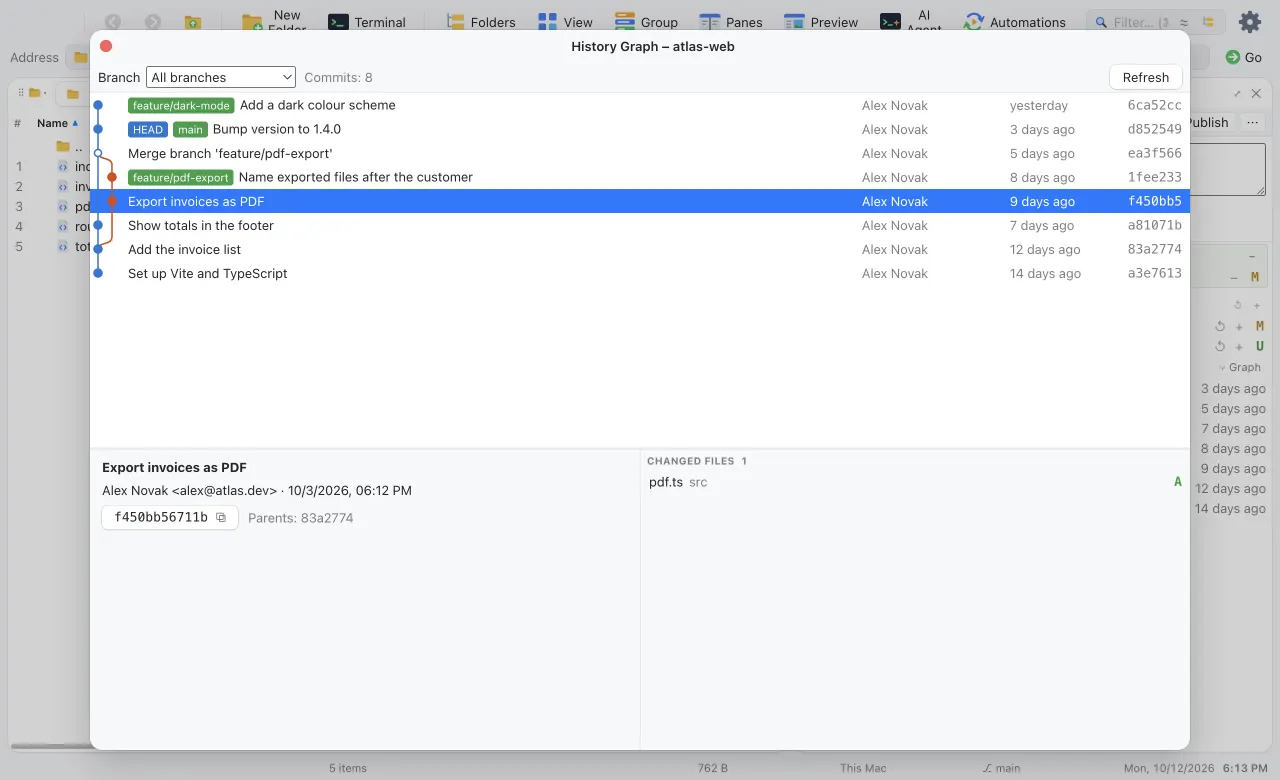
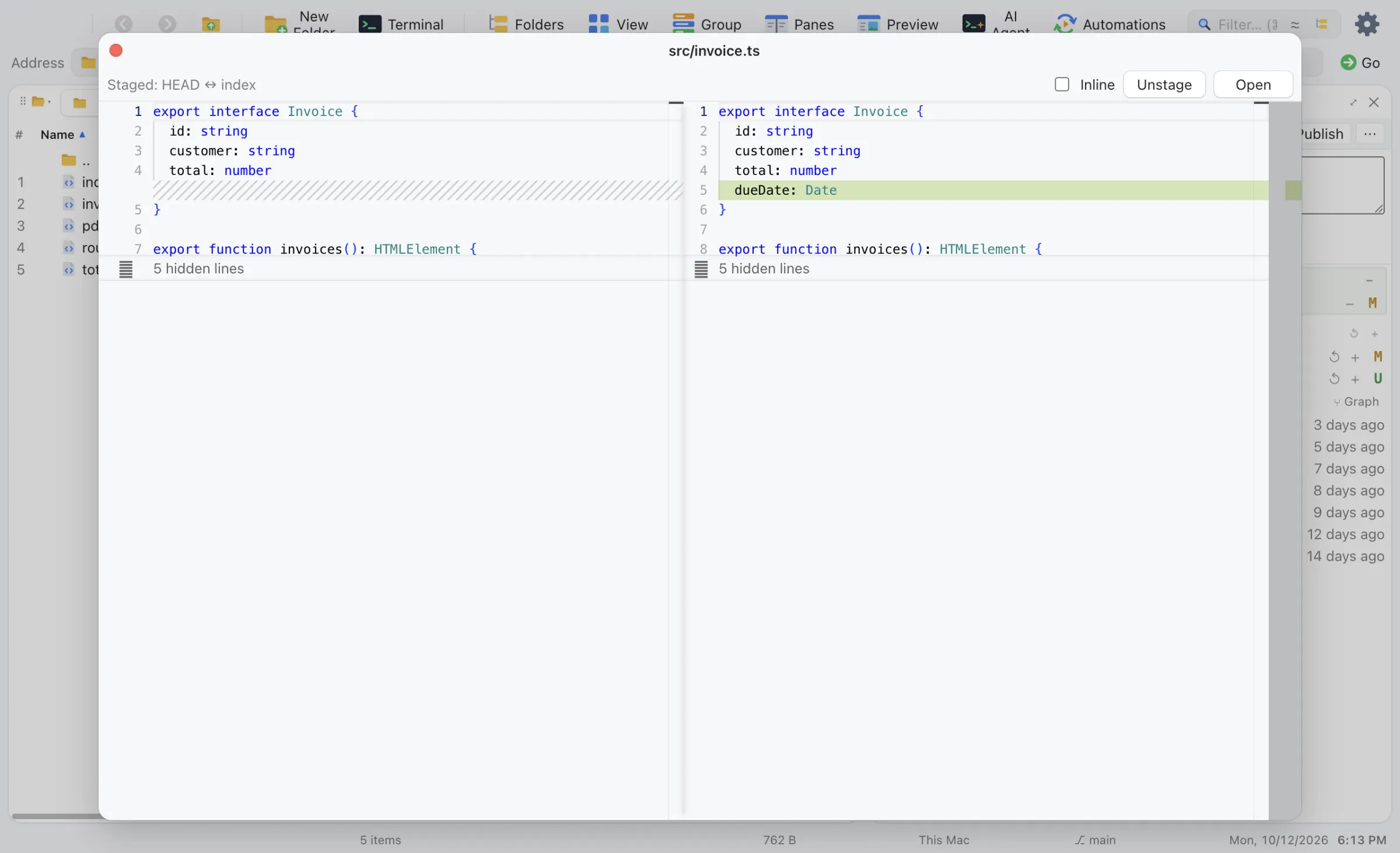
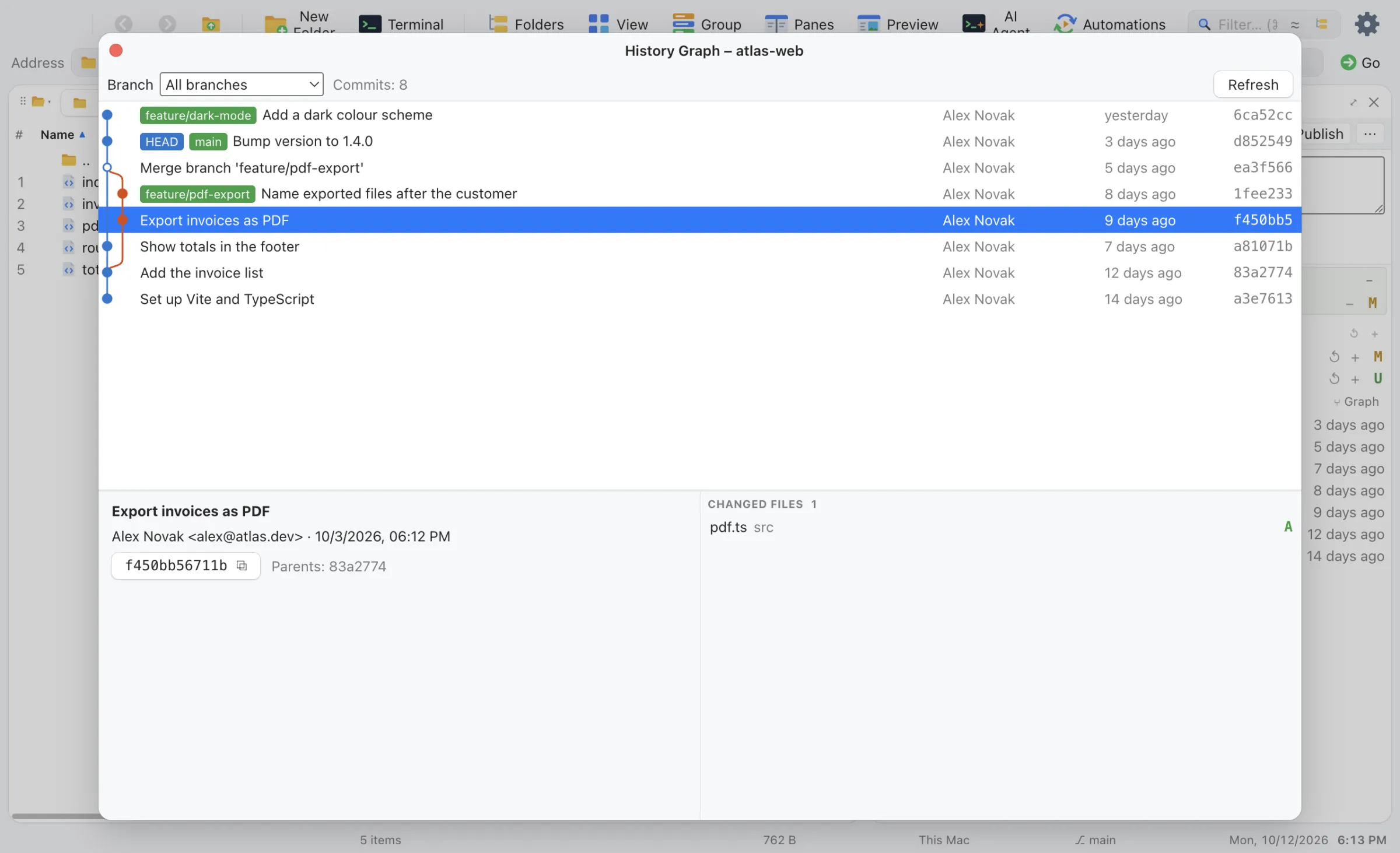
  • Git status badges on files and folders, with the branch and ahead/behind count in the status bar.
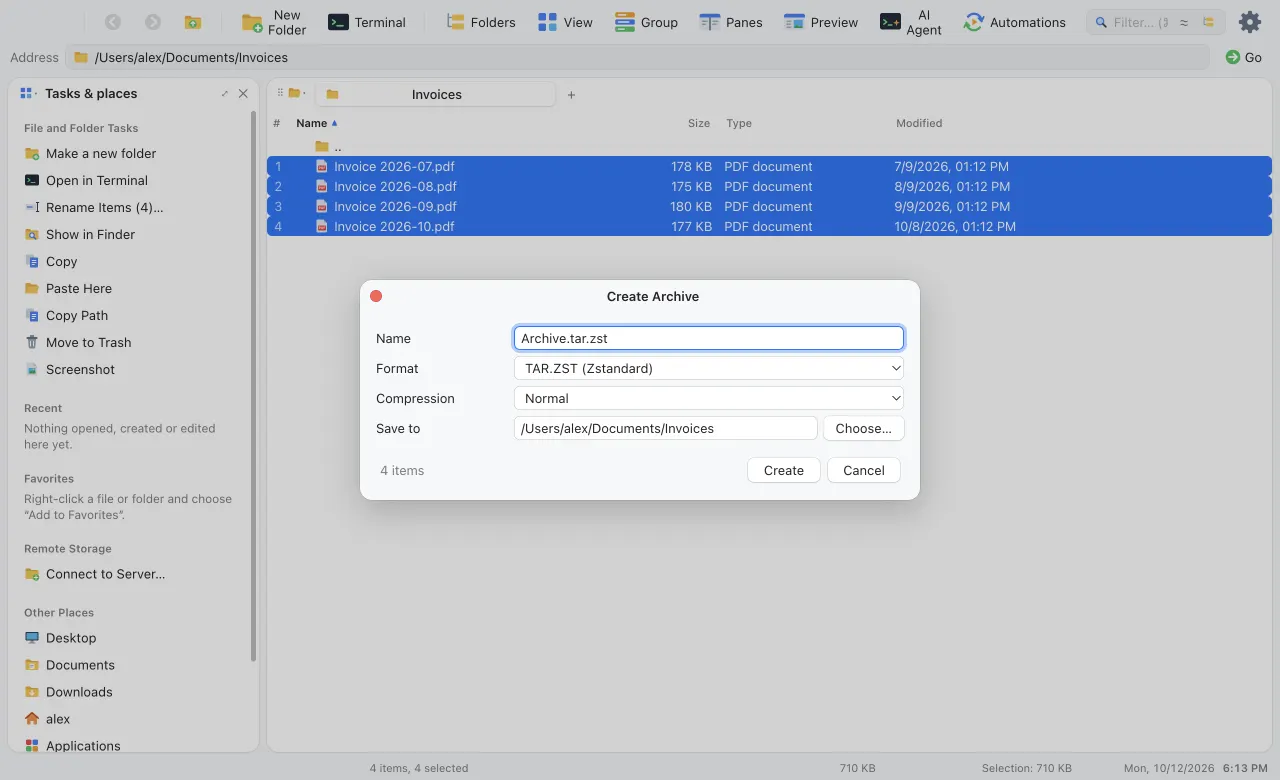
  • Archives as folders: open .zip, .jar, .tar and .tgz with a double-click and copy files out.
  • Favorites pinned to the task pane, for files and folders alike.
  • Copy, cut and paste through the system clipboard, so files move to and from Finder and Explorer. Name clashes ask: replace, keep both or skip.
  • Drag and drop onto folders, the tree or empty space. Same disk moves, another disk copies, ⌥ forces a copy.
  • New folder in one click with the name ready to type, Copy path, the system terminal one right-click away, hidden files on demand.
  • Four languages: English, Czech, German and Spanish, following your system by default.
  • A clock in the status bar. Click it for a month calendar with ISO week numbers.
The calendar popup above the status bar clock, showing October 2026
▾

Keyboard shortcuts

Keyboard

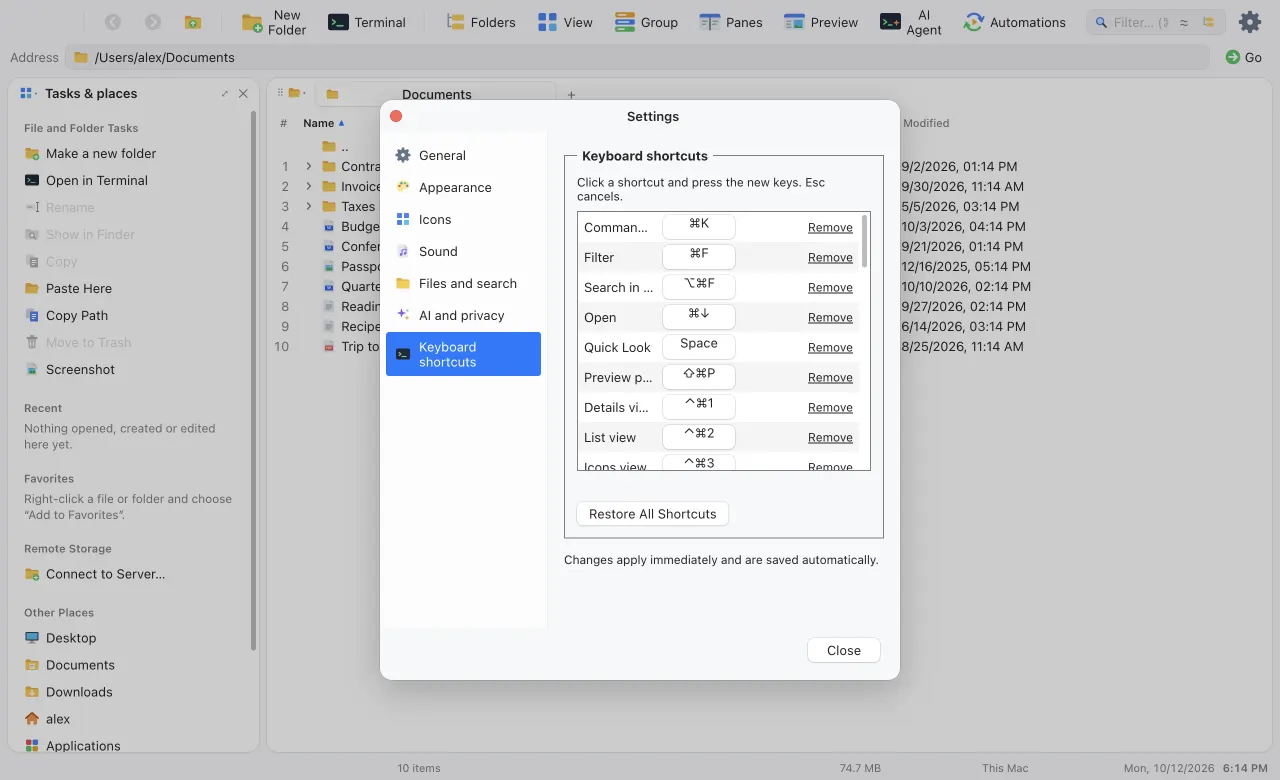
Finder conventions on the Mac, Explorer conventions on Windows and Linux. No Ctrl+Alt combinations, so AltGr layouts keep working.

ActionmacOSWindows and Linux
Command palette⌘KCtrlK
Quick LookSpaceSpace
Preview pane⇧⌘PAltP
Add to Favorites⌃⌘TCtrlShiftD
Filter⌘FCtrlF
Search in subfolders⌥⌘FCtrlShiftF
Back / Forward⌘[ ⌘]Alt← Alt→
Up one level⌘↑Alt↑
New folder⇧⌘NCtrlShiftN
RenameF2F2
Move to Trash⌘⌫Delete
Paste and move⌥⌘VCtrlShiftV
Duplicate⌘DCtrlD
Copy path⌥⌘CCtrlShiftC
Show hidden files⇧⌘.CtrlH
New tab / Close tab⌘T ⌘WCtrlT CtrlW
Split panes⌘\Ctrl\
Copy / Move to other paneF5 F6F5 F6
New window⌘NCtrlN
Integrated terminal⇧⌘TCtrlShiftT
AI Agent panel⌃`Ctrl`
▾

One app, three platforms

Platforms

aFinder is built for macOS first and behaves like a native citizen on Windows and Linux too.

macOSWindowsLinux
Folder tree roots/ (Macintosh HD)Drives C:\, D:\ …/
PlacesDesktop, Documents, Downloads, home, Applications, volumesThe same, plus every driveThe same, plus /media, /run/media, /mnt
File clipboardFinderExplorertext/uri-list
Main modifier⌘CtrlCtrl
Package.dmg, Apple silicon and IntelInstaller, x64 and ArmAppImage and .deb, x64 and Arm
Get aFinder

Download aFinder

Latest version · Choose the installer for your computer.

These installers are unsigned, so your operating system may show a security warning. The Windows build is older and may not include all features shown above.

View release details

aFinder 0.1 by attosoft. Built with Electron, React and TypeScript.

Not affiliated with Microsoft. Windows and Windows XP are trademarks of Microsoft Corporation; the other theme names refer to their respective owners.